I select my study program
Once your folder has been created and filled in, you can select one or more Trainings. (programs).
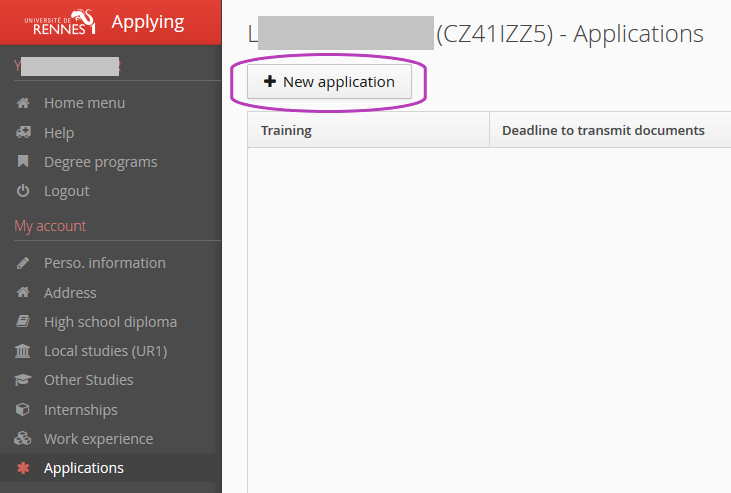
The web portal Applying tab reveals the "+New application" button which displays the training offer (available program).
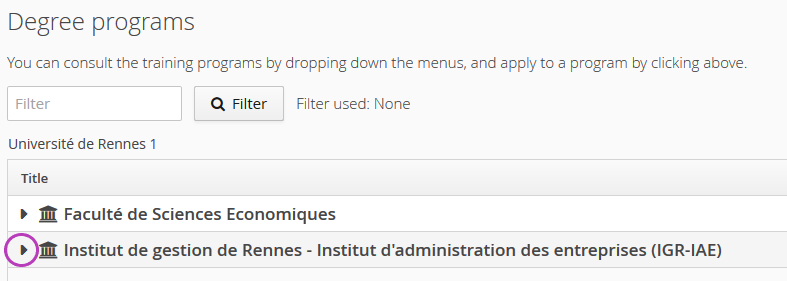
You can scroll through the training offer (available program) by using the arrow on the right of the screen.
You can narrow your search with keywords in the "Filter" field
You can only select courses that are open on the web portal Applying for the academic year.
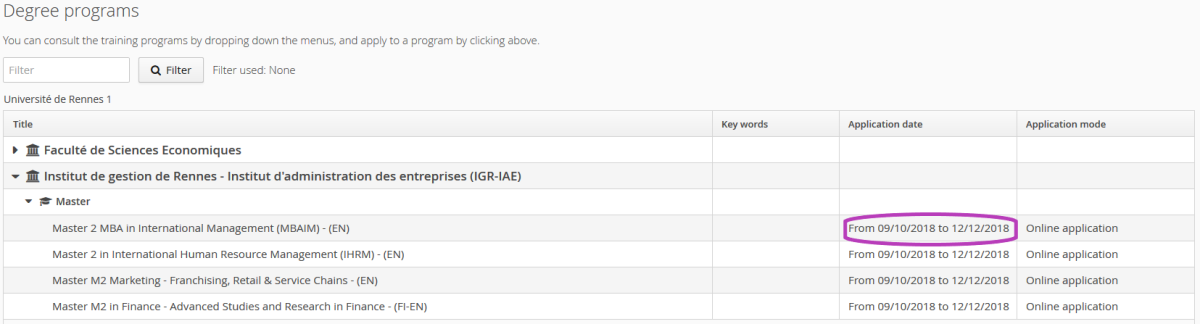
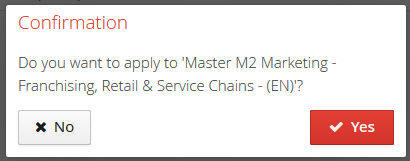
You can select a Training (program) by clicking on its description.
ConseilI submit my supporting documents⚓
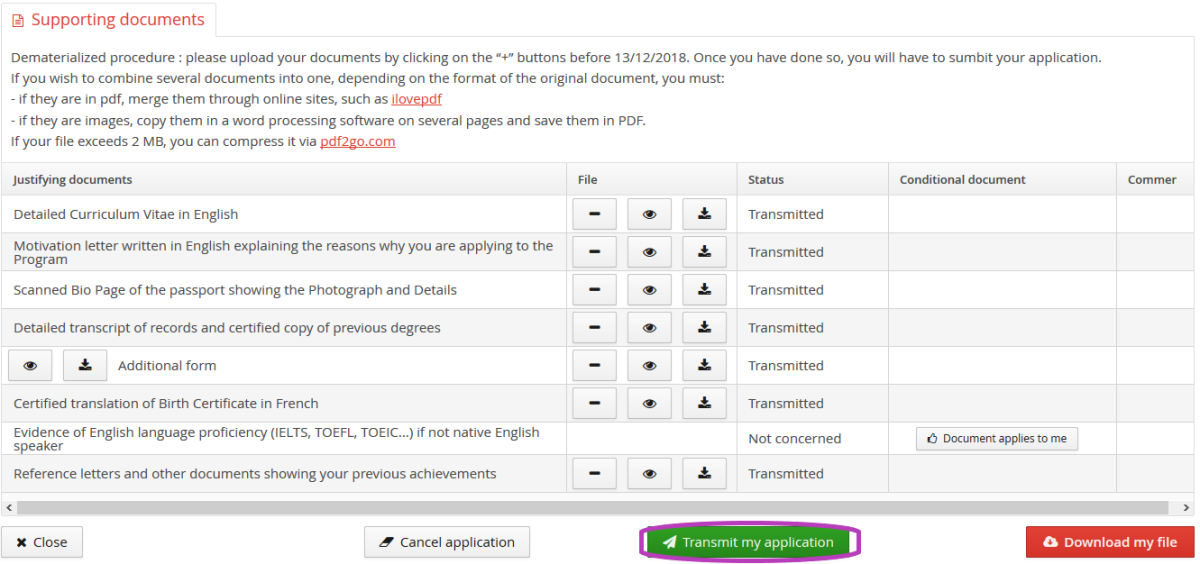
On the application summary screen, the block of supporting documents.
You can upload your attachments in PDF and JPEG format up to 2 MB per attachment.
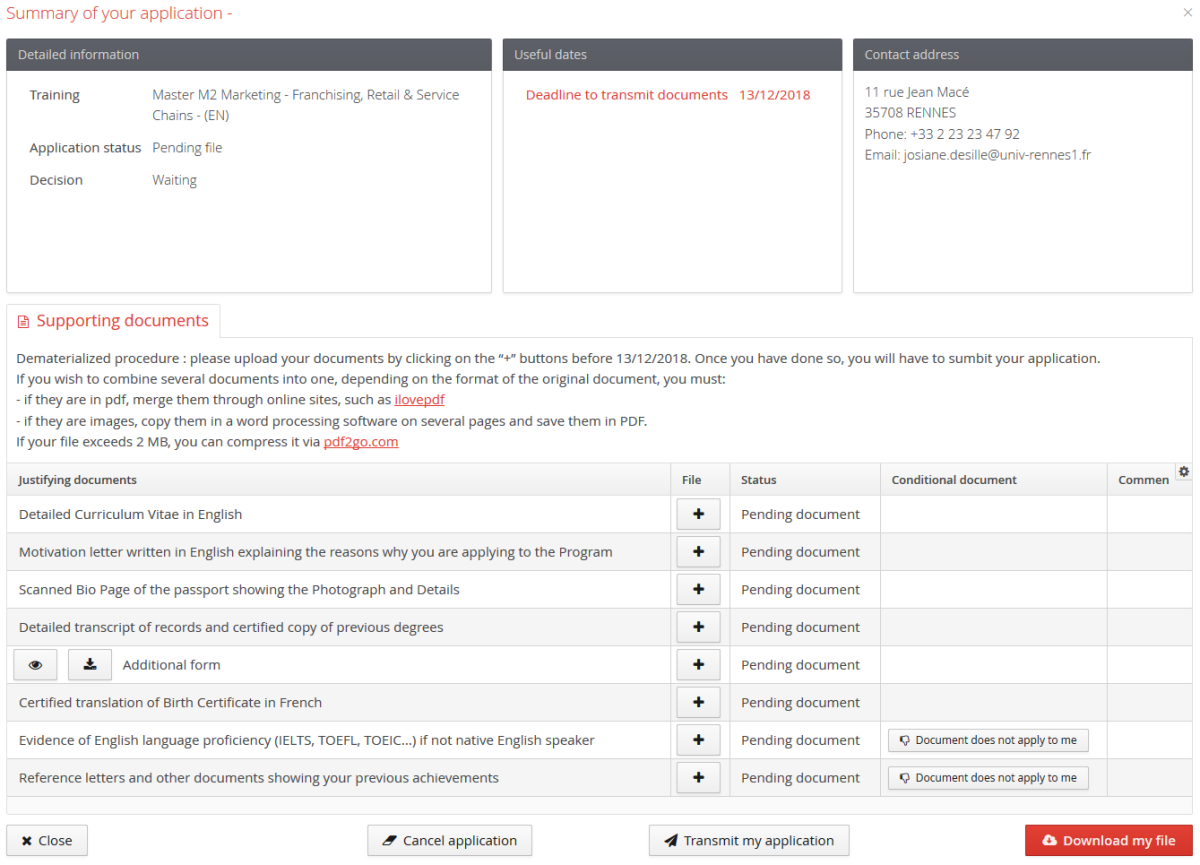
To add a document click on the "+" button
To delete an added document click on the "-" button
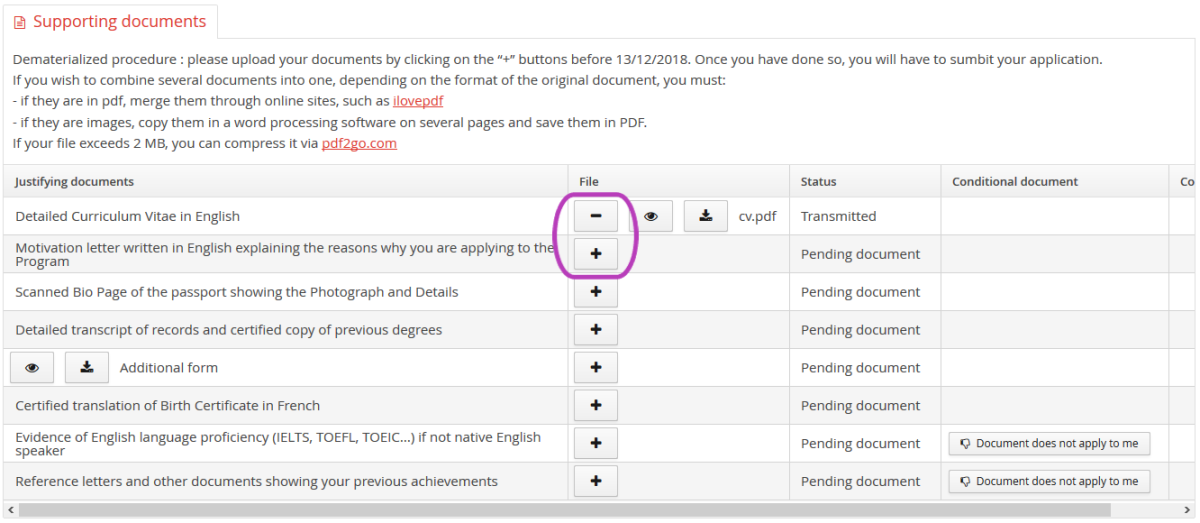
Some supporting documents contain a PDF form with specific information regarding the application for the training course, you can view the content by clicking on the corresponding button (see screenshot).
In some cases it is necessary to fill in the PDF form and submit it.
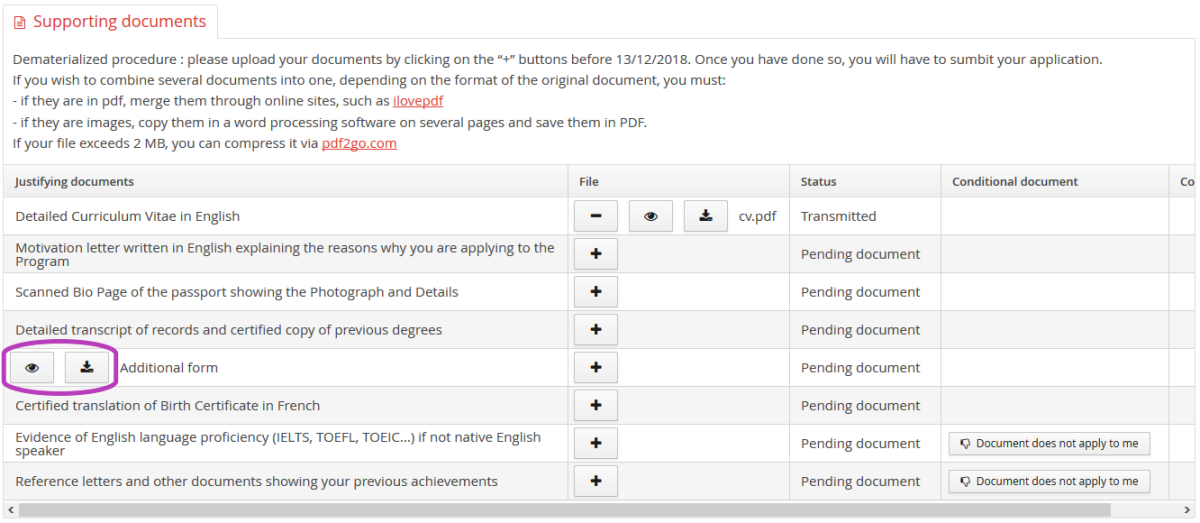
Non-mandatory supporting document
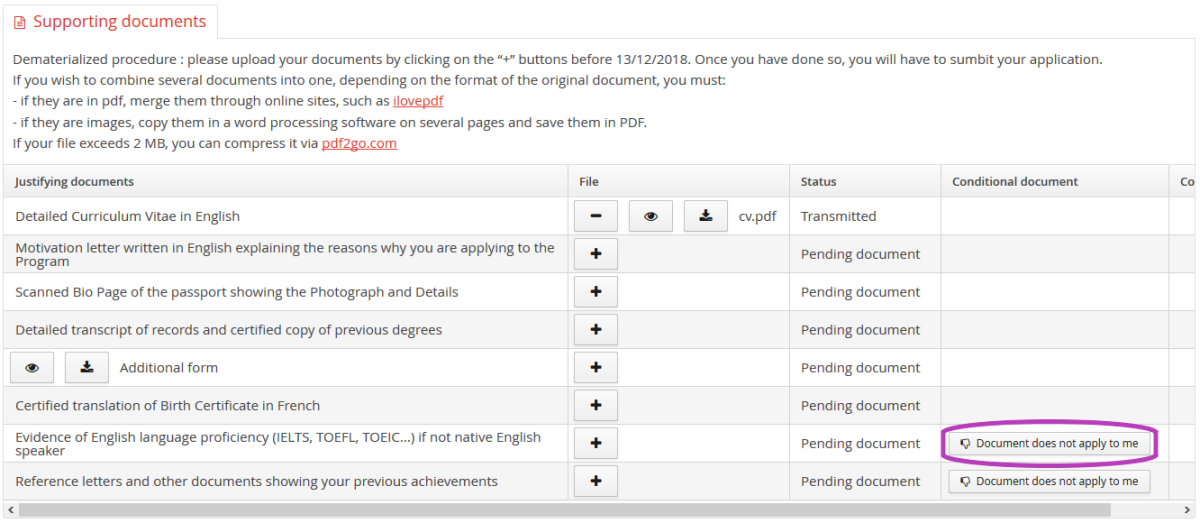
Certain supporting documents may not concern you, in which case you can either add the document or click on the "Document does not apply to me" button
Once all of the required documents have been submitted, you must send your application via the "Submit my application" button.
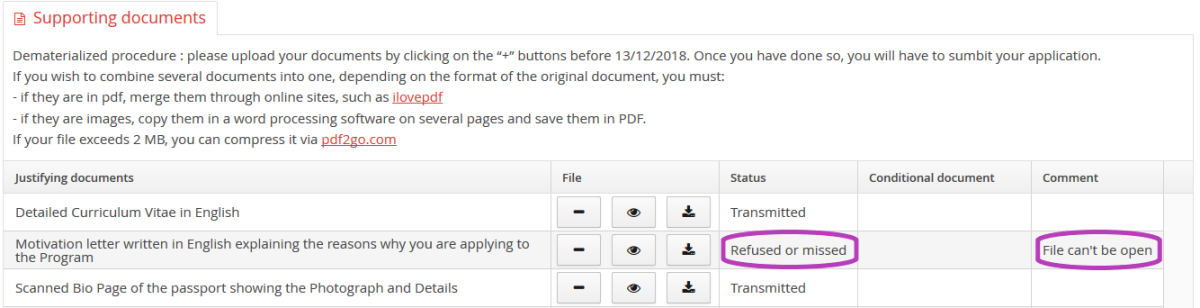
The status (rejected or validated) as well as a comment can be entered for each document
Truc & astuceFollow-up of your application file:⚓
We advise you to follow the progress of your application, by either :
- Connecting via the web portal “Applying” by using your username and password,
Or
- Consulting the notification e-mails sent to the e-mail address that was used when creating your folder